Wednesday, July 31, 2019

iPhone 11 to Support Apple Pencil


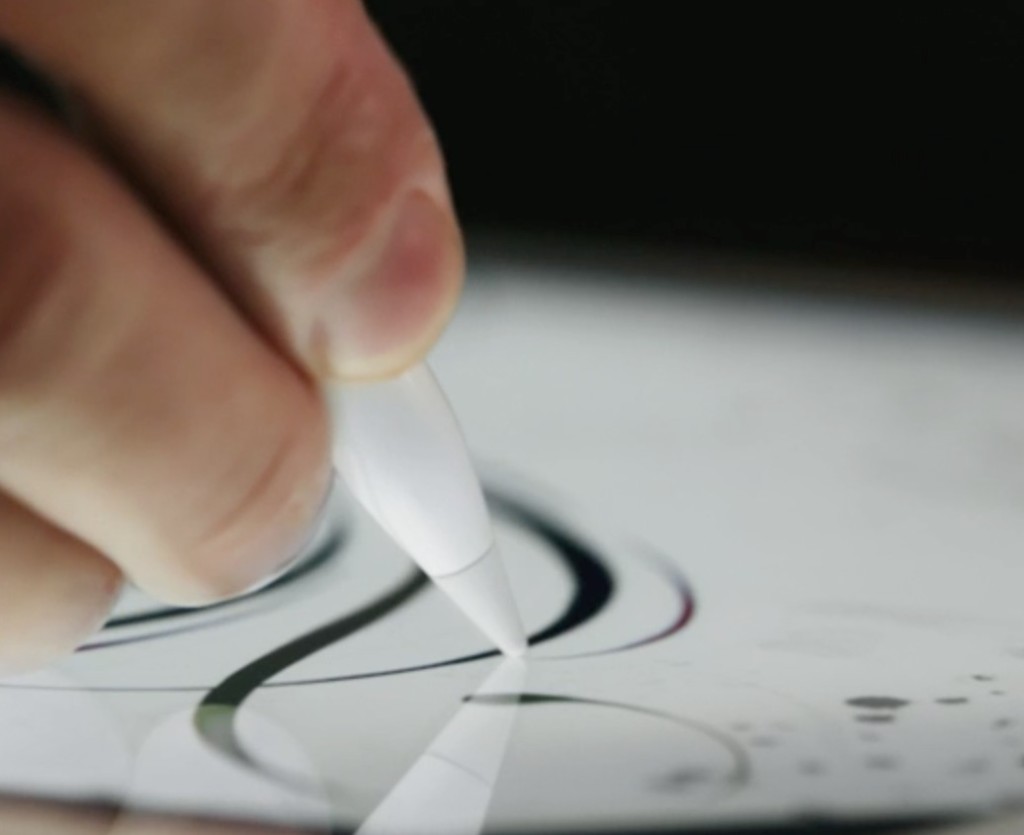
Citi Research has published a report that details list of new features set to arrive with 2019 iPhones. The report claims that iPhone 11 will support Apple Pencil. List of features included an item that read “support for iPhone pencil/stylus.”

The Apple Pencil debuted in 2015 alongside first-generation iPad Pro. As of now, Apple sells two versions of Apple Pencil. One is the older while the other is the newer version that works with new iPad Air, iPad sixth-gen, and iPad Air. In 2018 similar reports about iPhones supporting Apple Pencil surfaced, however, they were untrue. Furthermore, the report also mentioned Apple Pencil support will only be launched if Apple launches a bigger iPhone. We are not sure if Kuo meant an iPhone larger than the XS Max.

Apple Pencil supports all the iPad’s including the 12.9-inch iPad Pro and the 7.9-inch iPad Mini. That being said, the Apple Pencil support for iPhones might come at a later stage and 2019 iPhones may not get the feature.

The rumor mills have been predicting three iPhones this year, similar to last year. There is no confirmation as to what Apple will call the new devices. Major highlights of the upcoming iPhone include triple-rear camera setup, a bigger camera bump, A13 chip, better display, improved FaceID, upgraded 12-megapixel selfie camera and support for Gigabit LTE.
Our Take

I have used styluses on yesteryears devices like Palm and recently on the Galaxy Note. The Stylus or Pen was quickly replaced by scrolling, pinching and other touch gestures on a capacitive touch screen. However, Samsung has managed to retain the demand for smartphones with a stylus. Some of the features like Quick Notes on Galaxy Note series is a great way to jot down stuff without relying on a pen and a paper.

We are pretty sure that Apple will find innovative and utilitarian uses for the Apple Pencil on iPhone. However, the support for Apple Pencil might not arrive on 2019 iPhones. Did you ever feel the need for Apple Pencil while using iPhone? Let us know in the comments below.If you lost data after you updated to a new iPhone, you can always use Gihosoft iPhone Data Recovery to get the data back from the old iPhone or backup.You may also like: iphonerecovery.com


[via Business Insiders]

Friday, July 26, 2019

How to Request a Desktop Website in Safari for iOS

How to Request a Desktop Website in Safari for iOS

Most popular websites these days come in both desktop and mobile versions, with the latter rendering content in a more responsive fashion for a consistent browsing experience across a variety of tablet and smartphone screens.


Mobile-friendly websites are often stripped down and streamlined for easier navigation, with the result that some full-page content isn't displayed at all. Even when it is, finding that content can sometimes be a chore, especially if you're used to the desktop version of a site.


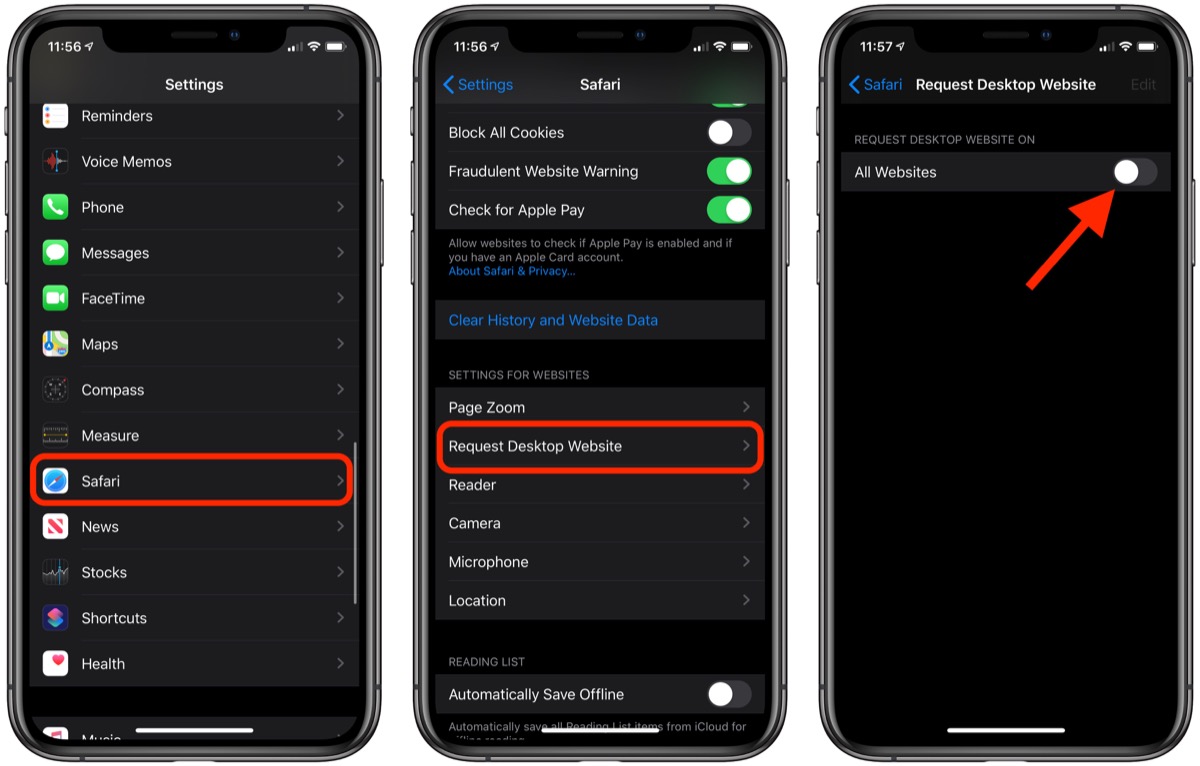
Fortunately, Apple has had the foresight to let you bypass mobile versions of websites and view original desktop versions on its mobile devices instead. To request a desktop site in Safari on an iPhone or iPad running iOS 13, simply follow these steps.


Navigate to a website that you'd like to view the desktop version of.


Tap the "aA" icon in the top-left corner of the screen to reveal the Website View menu.


Select Request Desktop Website from the dropdown menu.

The great thing about Safari's Website View menu is that it will remember your preferences for that specific website and apply it automatically the next time content is loaded from the same parent URL.


If you want, you can configure Safari to request the desktop website on all the websites you visit. The toggle switch to enable this option can be found in the Settings app, under Safari -> Request Desktop Website. Read more:Watch Thor Ragnarok For Free

Read more:instagram for pc

Wednesday, July 10, 2019

Ultimate Method to Unlock T-Mobile iPhone


How to Unlock T-Mobile iPhone without Hassle

Buying an iPhone that is SIM carrier locked is always huge stress on the buyer, but with reliable Doctorsim, it’s now possible to T-Mobile unlock iPhone without much stress.

The T-Mobile iPhone unlocking service provided by Doctorsim.com team would easily unlock your device and let you use a new SIM card in a formerly locked T-Mobile iPhone. This unlocking service cost the least and can be completed in 1 day from the moment you made payment and the receipt confirmed.
Why Do Most People Choose DoctorSIM?


Unlocking iPhone from T-Mobile online is legal and permanent. DoctorSIM isn’t using “hacking” way. iPhone won’t be relocked in the future.


Money back guarantee is available to those whom they are not able to unlock their iPhone for any reason.


Warranty won’t be avoided. Your phone’s hardware or software won’t be damaged.


iPhone unlocking specialists are available 24 hours a day and 7 days a week.


1000+ phones supported; 100+ network providers supported; 60+ countries supported.


Unlocking will be completed at the lowest price in the market and with the fast speed.
Click to Unlock >>
1
How to Unlock T-Mobile Carrier Lock from iPhone:


Get your iPhones IMEI number to process the request. You can dial “#06” on your iPhone to get it.


Go to www.doctorsim.com and select the model of your iPhone.


Under network provider, select T-Mobile.


Study the descriptions before selecting the cell phone unlocking service that is applicable to your device.


Input your iPhone’s IMEI number and email address in the fields, and choose a favorable payment method.


You’ll receive an email confirmation with instructions on how to unlock your iPhone.
2
Authentic User Reviews of DoctorSIM:

DoctorSIM has over 6,000 user reviews on Trustpilot, among which 85% rated it as Excellent. Some of the reviews say:


Of course, there are a few bad reviews which complained that it took a few days to complete. But none of the review complained about the refund. So why not give DoctorSIM a trial. If they could not unlock it finally, you won’t lose your money as well. Give yourself a chance.
How to Unlock T-Mobile iPhone by Contacting the Carrier

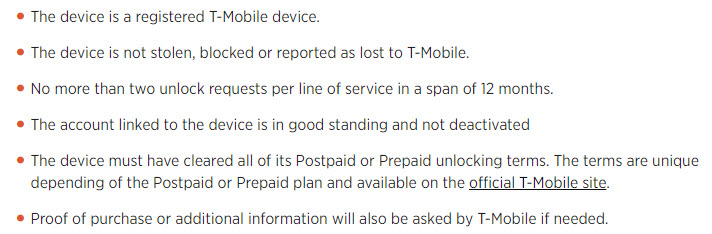
Do you prefer to unlock your T-Mobile locked iPhone from the carrier? If your answer is yes, then you can approach your nearest store T-Mobile store and ask them to unlock your device. However, before going to the store to request for help, make sure the following unlocking eligibility features are met:


If you can meet all these criteria, then you can refer to the T-Mobile Device Unlock app or contacting the customer support hotline (1-877-746-0909). You’ll get the carrier’s approval and instructions to unlock your iPhone from T-Mobile.

When it’s done, you just need to:


Plug the new SIM card into your iPhone card slot.


Power on your device.


Follow the instructions to complete the setup.

Sponsor ads:

Gihosoft RePicvid Free Photo Recovery Software provides a free photo recovery software for windows to help users recover the deleted or lost photo for free.

If you lost data after you updated to a new iPhone, you can always use Gihosoft iPhone Data Recovery to get the data back from the old iPhone or backup.You may also like: iphonerecovery.com

Thursday, July 4, 2019

How to Edit a Video on iPhone and iPad


In iOS 13, Apple has enhanced the built-in photo and video editing capabilities available to iPhone and iPad users, and for the first time it has made many of its stock photo adjustment tools available for editing videos.


In addition to the new video editing options, Apple has introduced a new tool selection interface that makes the whole process quicker and easier than ever before. Let's take a look at how it works.


Launch the stock Photos app on your iPhone or iPadand select a video clip from your Photo library using the Photos tab. If it isn't a recent video that you want to edit, use the Days, Months, and Years views to whittle down your collection, or select a clip from one of your albums via the Albums tab.
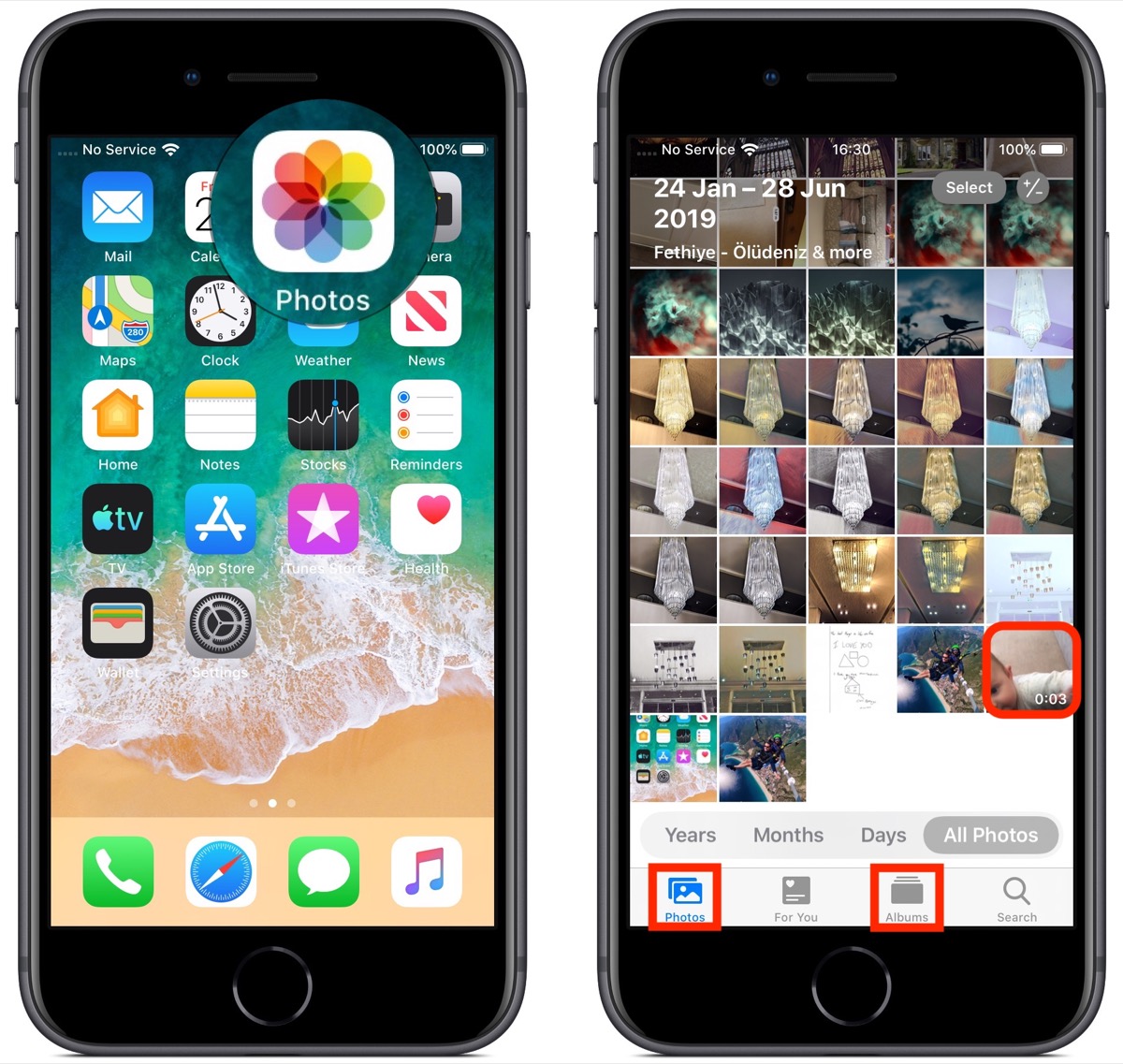


Once you've selected a video, tap Edit in the top-right corner of the screen. When the black-bordered editing interface appears, you'll notice four icons between the Cancel and Done options at the bottom of the screen.


Trimming a Video


The first film camera-shaped icon is the default selection, and gives you quick access to the timeline. The timeline appears below the video, and you can use it to scrub through a clip or trim it.
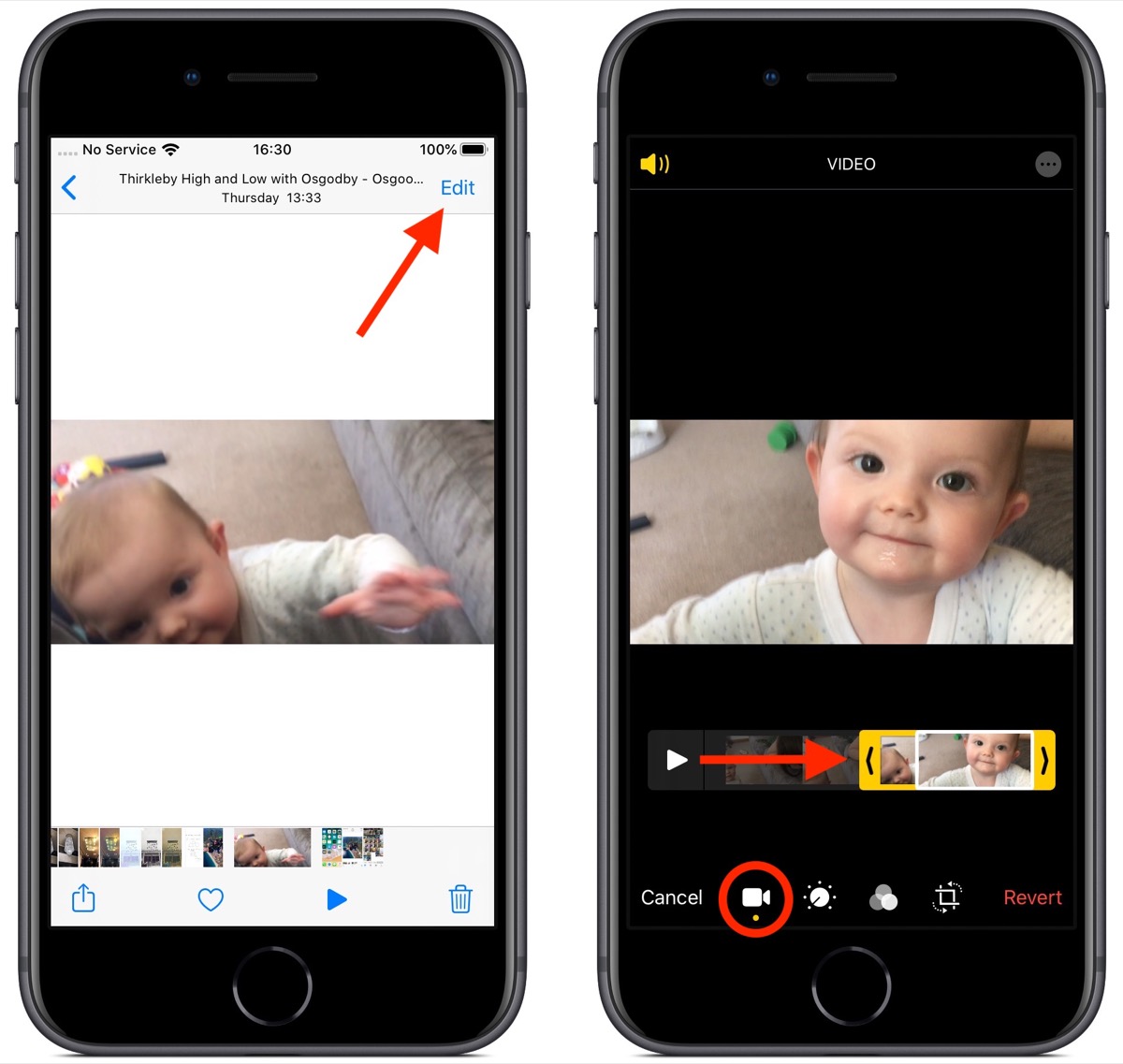


To trim the clip, drag the yellow chevrons to include the portion you wish to keep – anything outside the yellow frame will be discarded when you tap Done.


Adjustment Tools


The next option in the row of icons at the bottom of the editing interface looks like a control knob. Tapping this opens the Adjust tools in a horizontal strip below your video. Tap Auto – the first tool in the strip – and you'll notice the horizontal dial light up below the toolset.


Auto uses intelligent algorithms to optimally tune the other tools and enhance your video, but you can manually adjust its intensity level by moving the dial with a swipe of your finger. You can easily return to the auto-tuned level by returning the dial back to the white dot.


Swipe along the strip of other tools and you'll find that they all work similarly. The only difference is that when you swipe along the dial to change the adjustment level, the selected tool's icon will display a number that you can use as a reference to refine the effect you're previewing.


The other adjustment tools available in the horizontal strip include Exposure, Highlights, Shadows, Contrast, Brightness, Black Point, Saturation, Vibrance, Warmth, Tint, Sharpness, Definition, Noise Reduction, and Vignette. Simply tap Done when you're happy to apply and save your adjustments.


The Filters Tool


The third option in the row of icons along the bottom of the editing interface looks like a Venn diagram. Tapping this icon opens the Filters tool, which allows you to apply an Instagram-style filter to your captured videos in just a few quick taps.
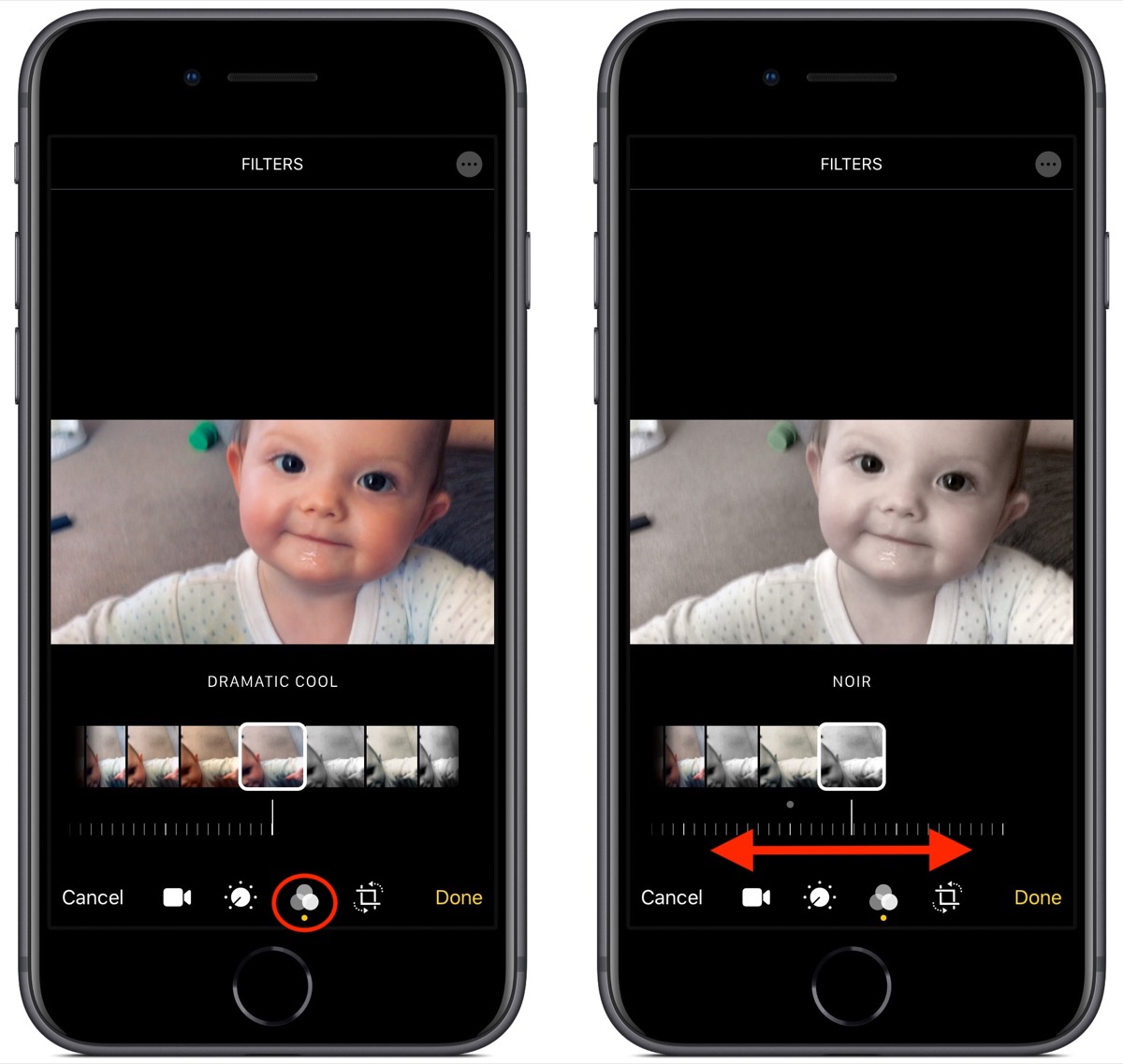


Swipe through the nine available filters to get a preview of how your video looks when each one is applied. Let your finger come to a rest, and a horizontal dial will appear below the selected filter.


Use you finger to move the dial and adjust the intensity level of the filter. Tap Done in the bottom right of the screen to apply the filter effect to your video.


Cropping Tools


The fourth and final icon at the bottom of the editing interface opens the cropping tools. You can easily crop a video using the grid overlay that appears by dragging at its corners, just like you would for photos.


Notice that you also now have a row of three additional adjustment tools associated with the dial below them. From left to right, these allow you to straighten the video, adjust its vertical alignment, and adjust its horizontal alignment.
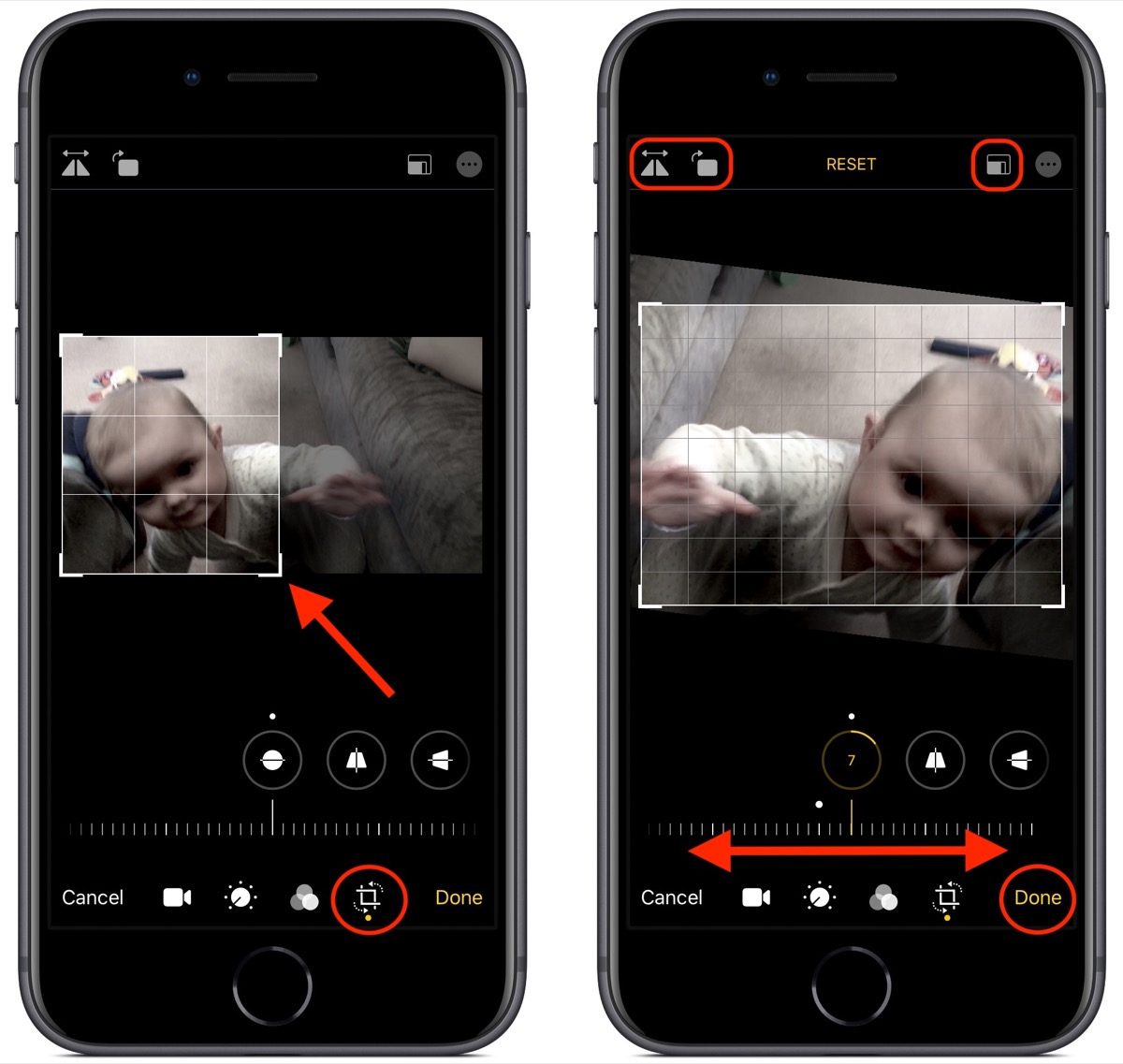


Tap one of the tools and move the dial with a swipe of your finger to adjust to the desired level, indicated by the number in the selected icon.


Running along the top of the video editing interface you'll notice more tools to flip and rotate the video on the left, and apply preset crop ratios on the right. You can tap the Reset button between these tools to undo your adjustments, or press Done if you're happy with your edits.


Lastly, it's worth remembering that you can access all of these editing tools whenever you capture video using the built-in Camera app – you don't even have to unlock your device to use them on the clip you just shot. Sponsor ads:

Gihosoft RePicvid Free Photo Recovery Software provides a free photo recovery software for windows to help users recover the deleted or lost photo for free.

If you lost data after you updated to a new iPhone, you can always use Gihosoft iPhone Data Recovery to get the data back from the old iPhone or backup.You may also like: iphonerecovery.com
Tuesday, June 18, 2019

Adobe’s AI Is Capable of Learning Painting Styles and Reproducing Arts in under a Minute

AI seems to be catching up when it comes to reproducing artwork. A recently published paper on arxiv.org by University of Maryland and Adobe Research details about how an AI can learn to reproduce handpainted canvases in under a minute. The paper is titled “LPaintB: Learning to Paint from Self-Supervision” and details an artificial intelligence model that is capable of reproducing handpainted canvases. Thats not all, the AI can be set to follow famous painters like Leonardo da Vinci and Vincent Van Gogh’s style.
Researchers have used self-supervised learning to create AI model. In this technique, unlabelled data is used alongside labeled data and this is something that will help improve the learning accuracy. The AI then models the system’s action states mathematically. After supplying the final state, the AI model learned to paint reference design whilst adhering to certain artistic style.
“With the development of non-photorealistic rendering techniques, including stroke-based rendering and painterly rendering, specially-designed, or hand-engineered methods can increasingly simulate the painting process by applying heuristics,” wrote the coauthors.
The AI framework is capable of executing painting actions with controlled parameters like stroke size, color, and positional information. As far as training data is concerned, the team drew pictures from reference images and set the samples to a fixed size. A PC powered by 16-core processor and an Nvidia GTX 1080 was used to reproduce a 1000 x 800 image with 20,000 strokes in less than a minute.
Meanwhile, the researchers warned that the training model is as efficient as the data it is being fed. Apparently, their method is based on basic painting environment. However, in the future one can build a model-based reinforcement learning framework which can be used in a painting simulator. On a related note, Adobe recently announced the Fresco artwork app for iPad with AI-assisted live brush feature.
Sponsor ads:
Gihosoft RePicvid Free Photo Recovery Software provides a free photo recovery software for windows to help users recover the deleted or lost photo for free.
If you lost data after you updated to a new iPhone, you can always use Gihosoft iPhone Data Recovery to get the data back from the old iPhone or backup.You may also like: iphonerecovery.com
iPhone Manager:Get the ultimate Gihosoft iPhone Manager. Free download for PC/Mac.


Sunday, May 12, 2019

2019 iPhone XR Could Be Available in Green and Lavender Colors


A new rumor claims that Apple will be dropping the Coral and Blue color options for the 2019 iPhone XR. Instead, it would replace them with Green and Lavender colors.

Apple will continue to offer the 2019 iPhone XR in six colors but make this small tweak to the color options. The other four colors in which the 2018 iPhone XR is offered — White, Black, Yellow, and (PRODUCT)RED) — will also be offered for the 2019 iPhone XR.

The report from Mac Otarkara also has some information about the 2019 iPhone 11 and iPhone 11 Max colors. They are expected to be available in White, Black, Spearmint, Mellow Yellow, Lilac and (PRODUCT)RED colors. The same set of color options are available for the official Apple cases for the 2018 iPhone XS and iPhone XS Max.Also Read:10 Websites to Watch Indian Live Television

Also Read:10 Best FRP Bypass APKs to Bypass Google Account Verification on Android

Also Read:Top 19 Best Websites Like VipBox for You to Watch Sports Stuff in 2019

Also Read:6 Best Free Photo Editing Apps for iPhone/iPad (2019)


Our Take

It looks like for colors, Apple is going to repeat its strategy from 2018. The 2019 iPhone lineup will likely be available in the same set of colors as the 2018 iPhone lineup. This means the iPhone 11 and iPhone 11 Max will be available in three colors — Silver, Grey, and Gold — while the iPhone XR lineup will be available in six colors with just a bit of tweaking from Apple’s side to replace the less popular color options with new shades.

[Via Mac Otakara]

Sponsor ads:

Gihosoft RePicvid Free Photo Recovery Software provides a free photo recovery software for windows to help users recover the deleted or lost photo for free.

If you lost data after you updated to a new iPhone, you can always use Gihosoft iPhone Data Recovery to get the data back from the old iPhone or backup.You may also like: iphonerecovery.com

If you use android phones, please choose Gihosoft Android Data Recovery.With Gihosoft Android Data Recovery, no longer afraid of data loss!

iPhone Manager:Get the ultimate Gihosoft iPhone Manager. Free download for PC/Mac.

Thursday, April 25, 2019

Apple is Losing Three Members of its Industrial Design Team


The Industrial Design Team at Apple is getting a bit of a shakeup, with a trio of talented individuals departing the company.

According to a report on Thursday from The Wall Street Journal, Apple’s illustrious Industrial Design Team is losing three members. The team is run by Jony Ive and typically consists of up to two dozen people. However, the report says that three members of the team are leaving.

Daniele De Iuliis and Rico Zorkendorfer have been at the company the longest, with the pair squaring up to 35 years at Apple combined. Meanwhile, another member of the team, Julian Hönig, has been with Apple for 10 years and will be leaving in the coming months:

“Mr. Zorkendorfer said he was taking a break from his professional life to spend time with his family, adding that he felt privileged to work on Apple’s design team. Mr. De Iuliis didn’t immediately respond to requests for comment. Mr. Hönig declined to comment.”

There have reportedly only been “a few” departures from the IDT over the last decade or so, so the fact it’s losing three team members within a short period of time is certainly newsworthy in its own right. But especially because the Jony Ive-led team is notoriously close-knit, and has been helping build up Apple’s success with new iPhone designs over the years.

“Mr. Jobs put the design group at the nexus of Apple’s product development process and lavished attention on the team, visiting it almost daily to see its latest work on new products. The combination of the ID team’s elevated status inside Apple and Mr. Jobs’s treatment helped create a group that worked and socialized together, becoming so tight that only a few members of the team left in more than a decade, according to some of these people.

Stock grants made the designers millionaires as Apple became the world’s most valuable company. Many were able to afford second and even third homes.”

The good news here comes from Zorkendorfer, who says that the change in staffing is actually just a shift in new design talent entering the company. It may not suggest that everything is crashing down internally, as far as the design team is concerned. Zorkendorfer, at least, doesn’t seem to think this is a sign of the End Times, anyway.

The timing is certainly interesting, though! 2011 may be one of the biggest question marks for Apple in terms of design for the iPhone, at least as far as the latest rumors and leaked specs are concerned. Apple’s reportedly going with a triple-camera design for at least one model, and the company could be adopting a very . . . unique design philosophy.

[via WSJ]

Sponsor ads:

Chuwiには、カスタマイズされたラップトップ、タブレットPC、妥協のない品質、安定性、サポート、パフォーマンスを備えたミニノート pcエクスペリエンスの世界有数のテクノロジーパートナーになることをミッションがあります。


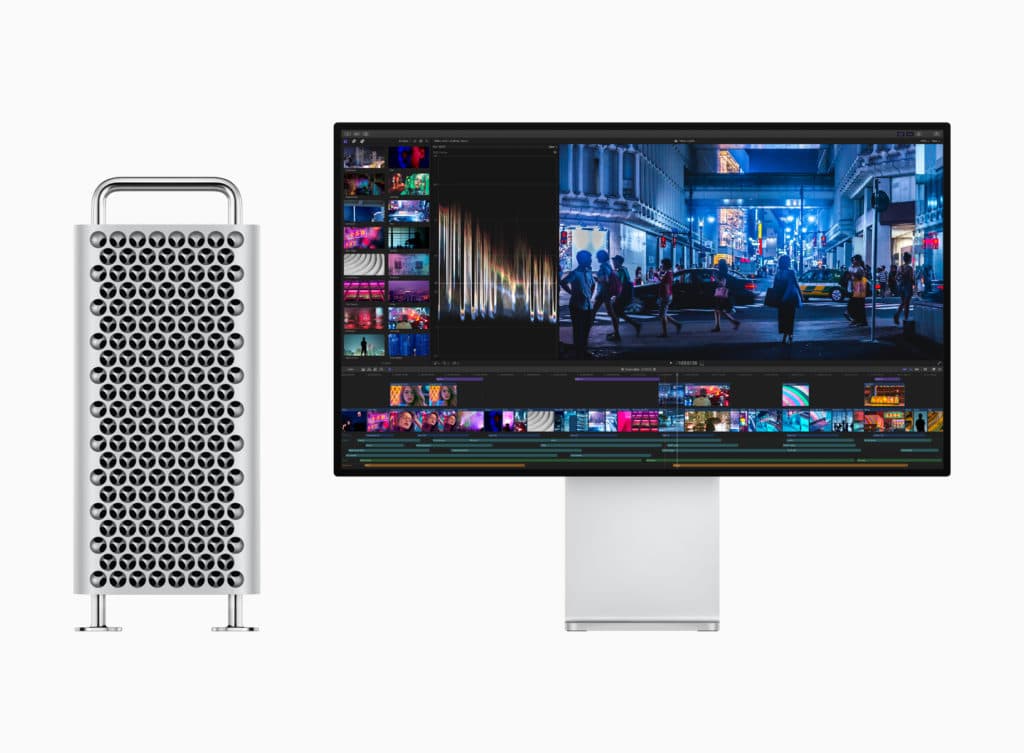
Updated Mac Configuration Utility Hints at Imminent Apple Mac Pro Launch

Apple Mac Pro was announced last month alongside new iPhones, iPad, Apple Watch. During the launch, the company didn’t specify the exact rel...