Sunday, February 24, 2019

Download Photos from iCloud to iPhone (iOS 12/11.3 Supported) 2019

Download Photos from iCloud to iPhone (iOS 12/11.3 Supported) 2019
Part 1. Download Photos from iCloud Backup to iPhone

It is easy to download all the pictures from an existing backup file from iCloud to your iPhone. However, the real catch about this process is that when you opt for this selection, the restoration will delete the existing contents on your iPhone and then restores the pictures from the backup file. The process is not advisable, as in some cases, it even replaces all the settings too!


Part 2. Download Photos from iCloud Photos Stream to iPhone

With the assistance offered by iCloud Photos Stream, you can quickly and easily transfer all the photos from your iCloud backup file to your iPhone. However, make sure that you are using the internet over Wi-Fi or cellular data. Also, remember that it is a time-consuming process. If you think you will have the patience, you can get along with this method.

Step 1: Open the Settings application on your iPhone.

Step 2: Navigate to the iCloud application.

Step 3: Move down the list of options available and choose the Photo Stream, and select it.

Step 4: Tap the option to activate the same.

Step 5: Turning on the service will allow the synchronization, where the photos available in the iCloud will now be on the iPhone device.


Part 3. Download Photos from iCloud Photo Library to iPhone

iCloud Photo Library is another example through which you can extract photos or transfer the existing images available on the photo library to your iPhone in a few simple steps. We all know that both pictures and videos consume a lot of space in an iPhone, and in fact in any smartphone. However, with the help of iCloud Photo Library, users can transfer the pictures and videos to the Apple cloud service to free up space on their device. They can even see them online through their iCloud account from any device and at any time. The following are the steps through which you can quickly download pictures from iCloud Photo Library to your iPhone.

Step 1: You will have to activate the iCloud Photo Library, which you can do it from the settings application. Head to the app on your iPhone, scroll the list to find iCloud and opt for Photos. Swipe the iCloud Photo Library to the right to activate the service.

Step 2: In the same window, you will be able to find "Download and keep original" option. Activate the same.

Step 3: You can now launch your Photos application on your iPhone to view the photos available in the iCloud Photo Library app as it will synchronize the data automatically.


Part 4: Download Photos from iCloud to PC (iOS 12/11.3 Included)

This part will work a lot for you if you wish to download your previous photos from iCloud backup to Mac or Win. iMyFone iTransor(renamed from D-Port Pro) is such a tool to export different types of data from iPhone or from iTunes/iCloud backup, backup and restore iPhone, iPad and iPod touch. With this program, except exporting iOS data, you can also back up your iPhone and fully restore or selectively restore only Messages, Contacts, WhatsApp data and WeChat data to your device without overwriting the other data.Sponsor ads:

Gihosoft Free iPhone Data Recovery:https://www.gihosoft.com/iphone-data-recovery-free.html

Gihosoft iPhone Data Recovery Free

Free iPhone Data Recovery Software for Windows/Mac

Recover up to 12+ types of files, including contacts, SMS, photos, WhatsApp, Viber, notes, etc.

Restore lost data from iOS devices directly or from iTunes and iCloud backup

Recover iPhone data lost due to iOS upgrade/jailbreak, accidental deletion, device lost or broken

Support all the latest iPhone, iPad and iPod Touch

Both Free and Pro version.

If you lost data after you updated to a new iPhone, you can always use Gihosoft iPhone Data Recovery to get the data back from the old iPhone or backup.You may also like: iphonerecovery.com

If you use android phones, please choose Gihosoft Android Data Recovery.

With Gihosoft Android Data Recovery, no longer afraid of data loss!

Must read:Youtube video downloader for pc

Gihosoft RePicvid Free Photo Recovery Software provides a free photo recovery software for windows to help users recover the deleted or lost photo for free.

Jihosoft Android Data Recovery: the best Android Data Recovery software for Windows and Mac to recover deleted contacts, messages, photos, videos, WhatsApp and etc from Android devices.Tips:How to transfer messages from iPhone to iPhone

jihosoft Free iPhone Data Recovery


How to Efficiently Manage Your Apple Subscriptions – View / Cancel 2019


Some contents on apple offer subscription based services relating to their content. Although Apple makes it pretty easy to manage these subscriptions, it could be really frustrating to pay for a service that is not in use. For this reason, it is first important to know subscriptions that renew automatically. They include:


Apple News stand subscriptions


Apple Music Individual


Apple Magazine Subscriptions


Apple News Subscriptions


Subscriptions to apps on App Store

Apple News Stand, News and magazine subscriptions let you subscribe to your favorite new sources magazines and periodicals. This lets you enjoy your favorite stories from your favorite outlets – you no longer have to click on different apps to get these stories. In about the same way, Apple Music allows you access to the Apple Music catalogue containing songs, music videos and more.
How to View Apple Subscriptions

There are slightly different steps involved in viewing apple subscriptions on iPhones, iPad, iPod touch or iTunes
1How to View Subscriptions On iPhones, iPad Or iPod Touch

Step 1: Go to settings, click on your Apple account name ˃ iTunes & App Store.

Step 2: Click on your Apple ID at the top of your screen, click on View Apple, then sign in or use Touch ID.

Step 3: Once you have done this, click on Subscriptions, and then tap the subscription you wish to manage.


2How to View Subscriptions on iTunes

Step 1: Go to iTunes, sign in with your Apple ID if you are not signed already.

Step 2: Locate the menu bar at the top of your screen or iTunes window, go to Account, click on View My Account.

Step 3: Then enter your password or use the Touch ID option, press the Enter or Return tab.

Step 4: On your Account page, go to settings, scroll to the right of Subscriptions, and then click Manage if you have any issues with the subscription.


How to Cancel Subscriptions

Cancelling apple subscriptions could be necessary when you are charged without notice or you do not need the service anymore. In this case, you must follow the appropriate steps to ensure you continue enjoying only services you need and would wish to pay for.
1How to Cancel Subscriptions on iTunes

When you subscribe using your iTunes account to services such as Hulu Plus or Netflix, the subscription automatically renews until you turn it off. Turning off or cancelling your iTunes subscription is not so difficult a process. There are essentially two ways to do this.

Step 1: Open iTunes Store, click on your Apple ID at the top-right corner and log in to proceed.

Step 2: Go to Settings, you will find Subscriptions at the bottom of the section. Click on the Manage link.

Step 3: As with managing and cancelling subscriptions on your iOS device, you can turn off the Auto-Renewal tab to stop the service from running.


2How to Cancel Subscriptions on iPhone

Step 1: Go to settings, click on iTunes and go to the App Store.

Step 2: Click on your Apple ID, sign if this is requested or use the Touch ID option.

Step 3: Click on Subscriptions, select the subscription you want to manage, then select the Cancel Subscription option to turn it off.


If you do not see a subscription you are being charged for, ensure you signed in with your correct Apple ID. If you signed in correctly, the subscription may be from the direct provider and not from Apple.
Enjoy Your Life with Apple Music

Apple’s acquisition of Beats ensured they were finally ready to delve into the streaming music service in addition to the basic function of allowing music enthusiasts listen to their favorite, already existing music. However, in merging iTunes with Apple Music, songs are duplicated with an iCloud and original version of the same music. This is a terrible flaw as deleting the music from either iCloud or the original would make you totally lose your song.Sponsor ads:Best Free Video Converter for Windows and Mac

Must Read:If you lost data after you updated to a new iPhone, you can always use Gihosoft iPhone Data Recovery to get the data back from the old iPhone or backup.

Gihosoft Free iPhone Data Recovery:iphonerecovery.com

If you use android phones, please choose Gihosoft Android Data Recovery

Friday, February 22, 2019

How to Protect Your Privacy by Turning off Your Location in iOS 12


How to Protect Your Privacy by Turning off Your Location in iOS 12

If you don’t want to give off your location to a third party app, you can go to privacy>locations services and toggle it off. This is also the section where you will find the while using option mentioned above. You can switch it on and off as well.
IOS Security Options in The New iOS 12


One of the security features in the new iOS is that you can choose which apps can have access to other apps. For example, you can block the access of Google Maps to the microphone app. Go to settings> Privacy > apps. Here, you will see a list of apps. Click on app to view what other apps can get access to it and accordingly allow or deny access based on your preferences.


Apple can collect user data from their devices to make advertisements based on that data. If that doesn’t sit well with you, you can limit ad tracking in the new version of iOS. Go to Settings>Privacy>Advertising and toggle on or off limit Adtracking. By doing this, you will restrict the access of developers to your personal data and roaming patterns.


If your Apple device crashes due to an error or a malfunction, your data or crash report is sent to Apple . By studying this data, developers can find the cause behind the crash and provide effective solutions. You will need to provide permission to send the crash report to Apple developers. Your anonymity will stay intact during the whole process. Go to Settings>privacy>diagnostic and usage. You will see a switch adjacent to the share with developers’ option. You can turn it on to send your data to concerned Apple technicians.

Sponsor ads:

Gihosoft Free iPhone Data Recovery:iphonerecovery.com

Free iPhone Data Recovery Software for Windows/Mac

Recover up to 12+ types of files, including contacts, SMS, photos, WhatsApp, Viber, notes, etc.

Restore lost data from iOS devices directly or from iTunes and iCloud backup

Recover iPhone data lost due to iOS upgrade/jailbreak, accidental deletion, device lost or broken

Support all the latest iPhone, iPad and iPod Touch

Both Free and Pro version.

If you lost data after you updated to a new iPhone, you can always use Gihosoft iPhone Data Recovery to get the data back from the old iPhone or backup.

Top 10 Best FRP Bypass Tools to Bypass Google Account on Android Device 2019

Worth reading:download youtube 1080p

If you use android phones, please choose Gihosoft Android Data Recovery


Jihosoft Android Data Recovery: the best Android Data Recovery software for Windows and Mac to recover deleted contacts, messages, photos, videos, WhatsApp and etc from Android

Tuesday, February 19, 2019

How to Sync iPod to New Computer - If Your Old Computer Is Working 2019


How to Sync iPod to New Computer - If Your Old Computer Is Working

Unfortunately, it’s only practical to use iTunes to sync iPod to your new computer if your old computer is also in working condition that you can copy iTunes folder from it. Here is how you do it:

Step 1: Launch iTunes on your old computer.

Step 2: Sync your iPod as you normally would, if needed.

Step 3: Copy iTunes folder (in [Computer/This PC] > Music) onto external media, like a hard drive or USB stick.

Step 4: Install iTunes on your new computer and make sure you have the latest version.

Step 5: Go to your Music folder on new computer and paste the iTunes folder from your old computer there.

See, you need to copy the music folder from your old computer first. And you should have an external drive in this way.


Final Thought

Comparing these two methods to sync iPod to new computer without deleting songs, it is clear which is the best and most convenient. While iTunes is nice because it is the official Apple software, it has some very annoying limitations. For one, it doesn’t let you put your media on very many devices, and you also have to have a working old computer to be able to safely transfer your files to your new computer. You also can only really sync your data and it’s hard to transfer one file at a time.Sponsor ads:

Gihosoft Free iPhone Data Recovery:iphonerecovery.com

Free iPhone Data Recovery Software for Windows/Mac

Recover up to 12+ types of files, including contacts, SMS, photos, WhatsApp, Viber, notes, etc.

Restore lost data from iOS devices directly or from iTunes and iCloud backup

Recover iPhone data lost due to iOS upgrade/jailbreak, accidental deletion, device lost or broken

Support all the latest iPhone, iPad and iPod Touch

Both Free and Pro version.

If you lost data after you updated to a new iPhone, you can always use Gihosoft iPhone Data Recovery to get the data back from the old iPhone or backup.

Top 10 Best FRP Bypass Tools to Bypass Google Account on Android Device 2019

Worth reading:download youtube 1080p

If you use android phones, please choose Gihosoft Android Data Recovery

Jihosoft Android Data Recovery: the best Android Data Recovery software for Windows and Mac to recover deleted contacts, messages, photos, videos, WhatsApp and etc from Android

Monday, February 18, 2019

Battery Hacks (and Myths!) Every iPhone User Must Know 2019


There’s just something about having a low battery that is deflating. It’s almost as if a bit of life has been sucked away from you. And you don’t even have to think far to understand why. Phones have literally become associated with everything that we do that we cannot do without them. And when that low battery warning pops up, your face totally becomes a sad emoji. To remedy this and put more smiles on your face, this post will teach you battery hacks you can use to squeeze more juice out of your battery.


Let’s go!
1. Stop closing your apps

Perhaps one of the biggest myths about extending battery life is closing opened apps will extend it. That couldn’t be further from the truth. The reality is that it doesn’t and could, in fact, use more power to start the said apps. The reason is simple iOS has internal algorithms that perform memory management. They know when to shut apps that have been dormant for a while or apps taking a sizeable chunk of power and memory. You’ll be better off allowing the system regulates itself. So yeah, myth busted!
2. Turn it over

When you’re going to leave the phone unused for a long time, a good strategy is to turn the screen downwards. This will prevent it from popping on and off at the instance of all notifications; saving you some precious battery power.
3. Turn on Grayscale

This is one of the most underused battery hacks. When your battery is low and you’re far away from a power source, turn your screen to black and white to save some battery life. It might not look impressive without the colors and flash, but heck yeah leaves your phone functional. You can turn on grayscale by going to Settings > General > Accessibility, and toggling Grayscale” on.
4. Avoid cellular data like a plague

At all times, you’ll be best served using your Wifi and not your cellular data. This is because cellular data uses more power than Wifi. So yeah, try to connect to a Wifi connection if possible.
5. Use “Low Power Mode”

Sorry to be Captain Obvious, but it just has to be said. Switching to “Low Power Mode” takes the iPhone to a state where it consumes only 70% of its normal consumption by turning off background refresh, reducing brightness, and other power-saving actions. To turn on “Low Power Mode”, Settings > Battery > and toggle the option to on.
6. One Charge Cycle rule

As per recommendation from Apple, it is advisable to complete a charge cycle at least once each month. A charge cycle simply means charging your battery till it’s full and then running it down completely. Always keep that in mind!
7. Turn off flash

To be honest, no picture ever looked good with flash on; they are simple LED lights. People forget and leave them on even when taking pictures on broad daylight. You can turn this off by launching the Camera app and tapping the Zeus lightning rod like icon and tap “Off”.

Sponsor ads:

Gihosoft Free iPhone Data Recovery:https://www.gihosoft.com/iphone-data-recovery-free.html

Gihosoft iPhone Data Recovery Free

Free iPhone Data Recovery Software for Windows/Mac

Recover up to 12+ types of files, including contacts, SMS, photos, WhatsApp, Viber, notes, etc.

Restore lost data from iOS devices directly or from iTunes and iCloud backup

Recover iPhone data lost due to iOS upgrade/jailbreak, accidental deletion, device lost or broken

Support all the latest iPhone, iPad and iPod Touch

Both Free and Pro version.

If you lost data after you updated to a new iPhone, you can always use Gihosoft iPhone Data Recovery to get the data back from the old iPhone or backup.You may also like: iphonerecovery.com

If you use android phones, please choose Gihosoft Android Data Recovery.

With Gihosoft Android Data Recovery, no longer afraid of data loss!

Must read:Youtube video downloader for pc

Gihosoft RePicvid Free Photo Recovery Software provides a free photo recovery software for windows to help users recover the deleted or lost photo for free.

Jihosoft Android Data Recovery: the best Android Data Recovery software for Windows and Mac to recover deleted contacts, messages, photos, videos, WhatsApp and etc from Android devices.Tips:How to transfer messages from iPhone to iPhone


jihosoft Free iPhone Data Recovery

Friday, August 10, 2018

How to Save Photos from Dropbox to iPhone or iPad 2019 Guide


How to Save Photos from Dropbox to iPhone or iPad 2019 Guide

Step #1. Open Dropbox app on your iPhone or iPad. The app may ask you to sign in if you haven’t signed it for a long time.
Sign into DropBox on iPhone or iPad


Step #2. Now tap on Photos option from the menu at the bottom of your device.

This will show you all the photos you have stored in Dropbox.

Step #3. Tap on the photo you want to transfer or import.

Step #4. When the photo opens up, tap and hold on that photo. An options bar will appear on your device screen.

Sponsored Links

Step #5. Next, tap on Save to Camera Roll option.
Save DropBox Photos to iPhone Camera Roll
Your photo will be exported to the Camera Roll. Note that Dropbox may ask your permission to access your Photos app.
In case, you want to take your Dropbox photos on your Mac; the process is pretty much simple.

How to Save DropBox Photos to Mac or Windows PC

Step #1. Open www.dropbox.com on your Mac or Windows PC, and log into your account.
Step #2. On the top left corner, there are four options: Home, Files, Paper, and Showcase. You need to click on Files.
Click on Files Tab in DropBox Website
Step #3. Now click on Photos. (Note that Photos folder appears when you have synced your library with Dropbox app on your iOS device. Moreover, your selection depends on how many folders you have created to store photos and other files.)
When you click on Photos option, you will see all the photos you have stored on Dropbox.
Click on Photos in DropBox Web
Step #4. Next, Click on three dots (Elipsis).
Step #5. Click on “Download” button.
Download DropBox Photos to Mac or Windows PC


That’s all friends!

Summing Up

Remember, Dropbox quickly gets filled if you keep uploading your media files. There is just 5GB of free space, which you also get on your iCloud account. Thus, a total of 10GB free space is available for you. Use your space judiciously on a different device and make the most of your Dropbox and iCloud accounts.
If you lost videos from iOS Camerall Roll which are nowhere to download again, you can use Gihosoft iPhone Data Recovery to get back deleted videos from iOS device including iPhone, iPad and iPod Touch.

Jihosoft Android Data Recovery: the best Android Data Recovery software for Windows and Mac to recover deleted contacts, messages, photos, videos, WhatsApp and etc from Android devices.
Any app suggestions or topic recommendations are appreciated in the comments down below.

How to Make Your Messages Private on iPhone?


How to Make Your Messages Private on iPhone 2019?


How to Make Your Messages Private on iPhone?
3 Ways to Make Your Messages Private on iPhone?
Turn Off Message Preview to Make Message Private on iPhone


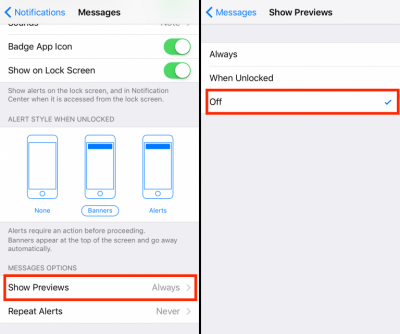
The feature mentioned above is called Message Preview. This feature is responsible for displaying a message without asking a user to unlock the device. You can disable this feature via your iPhone Settings app to make your messages private.


Open Settings app on your iPhone.


Navigate to Notifications > Messages.


In the Messages section, you will see two options; you can either use the Message Preview feature to turn on for the Lock Screen or disable the feature completely. Follow the on-screen instructions to disable the feature.


Apps to Make Your Messages Private on iPhone
CoverMe Private Text & Call


CoverMe is a popular iOS app available on App Store that can help you make your messages private. Apart from messages, the app also allows you to make secure and private phone calls, send disappearing messages, encrypt conversations, and much more.


Features


Send private messages as well as make all your messages private.


Make private and secure phone calls.


Recall sent messages as well as send disappearing messages.


Encrypt all your conversations.


Lock personal text messages.


Shake to hide messages.
Privatext


Privatext is another app that you can use to hide/secure your text messages and make them private on your iPhone.


Features


You can lock Privatext app, allowing you to enter a password in order to view your messages.


Automatic message deletion.


Confirmation Texting feature double checks whether you are sending the message to your intended contact.


Share photos securely in your private messages.
FreedomPop


FreedomPop app works with or without the popular FreedomPop service. It allows you to make free calls and texts with your FreedomPop phone number.


Features


Make your messages private.


Free minutes that allow you to make free domestic calls to anyone in the US.


You get a free phone number via this app. The phone number could be from Spain, UK, or US.


Share your new number with your contacts.


No contracts, no fees, no spam.
Private Message Box


Private Message Box allows you to hide your private text messages with ease. Your messages are locked behind a PIN pad and can only be accessed by providing the correct PIN.


Features


Hide your messages and make them private conveniently.


All your conversations with PSB contacts are secure and secret.


PSB app users can send each other free texts.


Tons of emoji characters to choose from.
Vault


Vault can hide your photos, videos, messages, contacts, and other important data and protect it via a password. The app is quite popular due to its security, efficiency, and ease of use.


Features


Make your messages private and hide them in a secure vault that can only be unlocked via a password.


Backup your videos, photos, and other secure data on Cloud.


Vault can also be unlocked with Touch ID.


Import multiple items simultaneously to the Vault.


If you lost videos from iOS Camerall Roll which are nowhere to download again, you can use Gihosoft iPhone Data Recovery to get back deleted videos from iOS device including iPhone, iPad and iPod Touch.

Jihosoft Android Data Recovery: the best Android Data Recovery software for Windows and Mac to recover deleted contacts, messages, photos, videos, WhatsApp and etc from Android devices.

Any app suggestions or topic recommendations are appreciated in the comments down below.

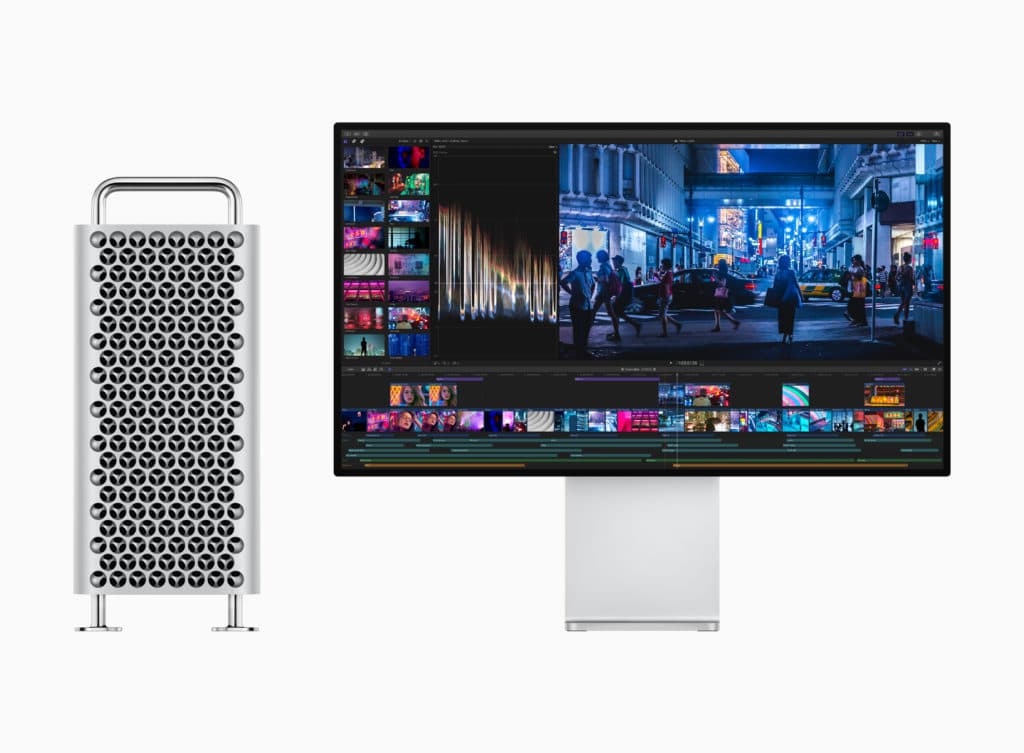
Updated Mac Configuration Utility Hints at Imminent Apple Mac Pro Launch

Apple Mac Pro was announced last month alongside new iPhones, iPad, Apple Watch. During the launch, the company didn’t specify the exact rel...